Every completed photoshoot is considered a listing.
Listings is the term used for every photoshoot that has been completed. Each individual Listing is packaged into a Listing Card. The card includes these features:
Delivery status: Undelivered and Delivered
Payment Status
Street Address
City and State
Agent’s Name
Agent’s email address
Team Name
Snap2Close order number
Amount paid
Photoshoot date.
Listing Overview Sample Image
Clicking on the Listing Card opens the full Listing Overview screen. This screen features a dedicated section for each category of media products we offer.
Listing Overview Screenshot
Listing Overview Features
The platform enables you to customize your property listings by rearranging content, hiding information from real estate websites, and managing your media files. You can download or upload your own images, include essential property details such as MLS descriptions and pricing, and update or design your property websites. Additionally, you can create marketing materials like flyers and social media advertisements. These tools empower you to effectively market your real estate listings and enhance your visibility in the market.
Below is a detailed description for each media section.
Top Banner Image: The top image is pulled from the 1st image displayed in your image gallery.
Top Left: Address of photoshoot.
Top Right Icons: These are social media icons connected to your social media accounts. This information is pulled from your PERSONAL SETTINGS on the left menu. These social media icons appear on your Branded Property Websites.
Below the address is the Delivery status.
Black Download Button: Click here for sample on pop-up screen.
Media
Images: This section includes all of the captured media by Snap2Close’s real estate photographers.
Below each image is a caption box. This allows you to enter your preferred description of the image. Special note: The captions are not downloadable and captions entered in MLS will require a separate action.
Add button: This allows you to add any photos that your are the homeowner want to include in the listing.
Bulk Actions button: Clicking this button opens up a new display window for your images. At the top left of each image is a checkbox. This feature allows you to check or select which images you want to Download, Hide or display image on your Image Gallery, and to Delete images.
Rearrange button: This opens a new screen with a “Resize Images” slider bar. You can simply drag and drop the images to your preferred order. Once you have completed the rearrange feature be sure to click the Save button a the bottom of window.
Floor Plans: This section includes the 2D and 3D Floor Plans captured. It also allows you to upload your own floor plans and Bronze Package customers to create your own no-cost Interactive Floor Plan.
Add button: This allows you to add any floor plan image.
Below each floor plan image is a caption box. This allows you to enter your preferred description of the floor plan.
Rearrange button: This opens a new screen with a “Resize Images” slider bar. You can simply drag and drop the floor plan images to your preferred order. Once you have completed the rearrange feature be sure to click the Save button a the bottom of window.
Interactive Floor Plan: Here is a link created by Aryeo on how to create your own plan.
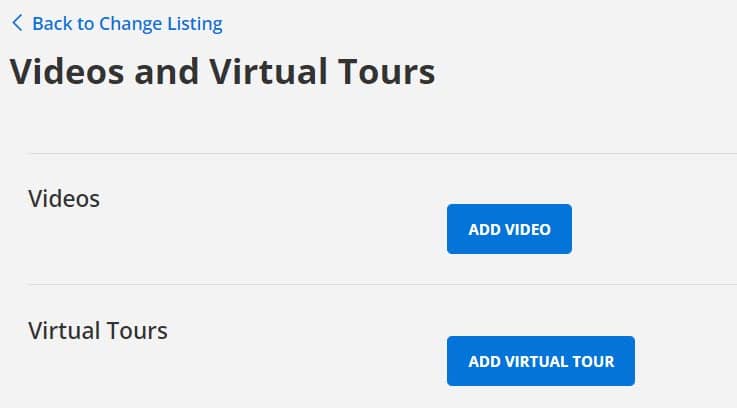
Videos: This section includes all of the captured video media by Snap2Close’s real estate photographers.
Add button: This allows you to add any videos you may have created.
Rearrange button: This opens a new screen with a “Resize Images” slider bar. You can simply drag and drop the video images to your preferred order. Once you have completed the rearrange feature be sure to click the Save button a the bottom of window. Special Note: Frequently you with have a Branded and Unbranded video. Snap2Close assigns these videos to the correct property website. The rearrange feature does not change those settings.
Edit: This feature allows you to change the title of the video and to control where the video will be displayed. Click here to learn more.
Embed code: This is referred to as code for an “iframe”. To learn more about iframe code then please click here.
Copy: This will copy the URL address. If you wish to share a video on Facebook then all you need to do is paste the URL address when you “Create a Post”.
Download: This allows you to download the video. If you want to create our own YouTube channel then you would need to download the video first and then upload it to YouTube. This is also true with several social media platforms such as Instagram.
3D Content: This category is for 3D Tours, such as Matterport or Zillow, and other interactive content such as Snap2Close Interactive Floor Plans. The features are much simpler than videos and are as follows:
Add 3D Content. (Please call our office if you have any questions about this feature.)
Copy: This will copy the URL address. If you wish to share the 3D Tour on Facebook then all you need to do is paste the URL address when you “Create a Post”.
View: This allows you to view the interactive media.
Delete: This allows you to delete the interactive content.
Files: Files can be Acrobat PDF, Microsoft or other documents and images. Snap2Close includes QR Code images for all photoshoots, and PDF floor plan related documents for its Silver, Gold, Platinum and Titanium Packages.
Add: Snap2Close strongly that you upload your property FLYER to this section and make it a downloadable file on the branded property website. This is also an excellent place to upload neighborhood or school reports that you want interested buyers to view.
Edit: This feature allows you add a description of the file, and to select whether the file is downloadable. Click here to view a sample.
Download: This allows you to download the file. This is very helpful if you want to download the QR Codes that Snap2Close created for your property websites.
Delete: This allows you to delete the file.
Marketing
Property Details and Status: The data you enter here will be automatically connected to the property website and marketing material templates. Be sure to complete this section for each listing.
Property websites: Snap2Close provides you with two complimentary websites. One website is Unbranded and should be used as your Virtual Tour link on MLS and the Branded version should be posted on all of your social media networks. Click here to watch a video tutorial.
Video Tutorials: Please watch these video tutorials to learn more about the tools available for you to use with your Branded and Unbranded property websites.
Domains: You have the freedom to buy your own domain name for your branded property website. This video provides a good explanation about why might should consider this. Special Note: You have the freedom to alter the domain name if that is your preference. Click here to view a graphic.
View: Clicking the View button opens a pop-up window displaying the website. Above the website are three icons, which are Mobile, Desktop and View Site. The pop-up screen displays the Desktop view. When you click the Mobile icon then the view switches to a mobile phone view. When you click the View Site icon then the pop-up screen disappears and a new tab will open up and display the website.
Editor: The black Editor button opens up the Branded property website and allows you to change the website’s template, colors, display features, menu descriptions, the footer and to add music to the website. Any changes make the to Branded property website will be reflected in the Unbranded virions.
Click here to return to the Portal Support webpage
Cynthia Shobe
Compass
Our team has been working with Snap2Close for many years now, providing us with superior photos/videos/drone shots/marketing material and more to showcase our listings in the best possible realm to secure a solid offer/contract for our sellers. Kaitlin is our “go to” rep and always makes our listings look AMAZING plus she really aids us in engaging in front of the camera to make a quality presentation for all our listings .. she is the BEST!!!
Evelyn Logosso
Realty Executives
Snap2Close is the most professional, exceptional photography company I have ever worked with over my 51 years in real estate.
I recommend them highly for their competency, their work ethic and their true desire to make the homes I list look as perfect as they all are.
Jessica Kortas
VP Administration @ Amplify Capital Group
Snap2Close is our go-to when we need high-quality, affordable photography for marketing materials. We appreciate the friendly, professional service, the excellent communication, reliability and quick turnaround time. Thank you Charlie, Sydney and Bill!
The importance of real estate media in today’s market
Casey Eliz
I cannot say enough amazing things about Snap2Close Photography—especially Sharon! After I unfortunately ended up with botched real estate photos from another photographer, I was in a total panic. Sharon stepped in immediately and was incredibly responsive, available the very next day, and ready to help me fix the situation.
Because of rain, she even came back out a second time to photograph the exterior—at no extra charge. That level of professionalism and integrity is rare. On top of that, she was genuinely kind, patient, and understanding throughout the entire process.
The photos turned out beautiful and truly elevated the listing. I am beyond grateful and officially a lifelong customer. If you’re looking for a real estate photographer who is talented, reliable, and an absolute gem of a human—Sharon at Snap2Close is it!
Please click the Pause button before closing this window.
Paula Serven
Charlie and his team at snap2close are always on point when it comes to their photos and they never disappoint. My clients are always pleased with their professionalism as well as their skills in photography, videos and drones. Highly recommended!
Claire Ackerman
Charlie and his team at snap2close are always on point when it comes to their photos and they never disappoint. My clients are always pleased with their professionalism as well as their skills in photography, videos and drones. Highly recommended!
Ashley Gomez
If you are looking to partner with a professional photography company that will elevate your real estate listings (whether you have several properties or just one) to the next level . . . look no further!
My experience working with Snap2Close has been nothing but amazing every step of the way. Charlie and his entire team are professional, knowledgeable, highly skilled, and focus on customer service. We recently worked with Snap2Close on a large project and I have received comments from multiple individuals about the website/photos/and videos. A few adjectives that have been frequently used are upscale, classy, and quality.
The photos captured the property in a multitude of ways which allowed me to emphasize different selling features of the property on MLS, flyers, and the custom made Snap2Close built-website. Snap2Close used still photos, drone photography for aerial photo/video, video photography, and 3D Matterport technology. From these different methods, Snap2Close created a custom website that, in addition to photos, allows prospective buyers to tour the property inside and out, view videos of the property, and use interactive photo floor plans that show the dimensions and flow of the property.
Furthermore, upon Charlie’s wonderful suggestion, we chose a package that included outside photos during the daytime and also at “twilight”. We ended up using a mix of both daylight and twilight photos as it allows the perspective buyers to view unique lighting features and other qualities not as noticeable during daytime walk-throughs.
Additionally – for those who are new to working with a real estate photographer and/or nervous about customizing websites and/or uploading photo/video files to MLS or other real estate platforms – Charlie created tutorial videos that walk you through the most common questions.
I could go on and on about the services Snap2Close provides and the care, time, and thought they put into their projects but I think their work speaks for itself.
Mandy King
When you are looking for “FIRST CLASS SERVICE”, look to SNAP2CLOSE. The staff is exceptional and the quality of their photography skills awesome. highly recommend them.
Max Shadle
Charlie and Snap2Close provide an incredible service at a terrific value. I have been a licensed agent for eleven years, and have always taken my OWN photos (and struggled each and every time). My latest listing I decided to use Charlie’s services, and I am SO thankful. First of all, his communication and overall professionalism is absolutely fantastic. He called me literally with one minute of me first placing an online order to coordinate a time for the photo shoot, and kept in touch right up until the time of the appointment. And….most of all….the quality of his work is simply amazing. I was stunned at how good the photos looked, and was impressed with the comprehensive manner in which the photos, videos, tours were delivered. This was an amazing experience and worth every single penny. If you are a licensed agent and want the best possible photos for your listings at a great value, contact Snap2Close without delay.
Jurga Kuo
Hands down to the BEST photographers in Arizona! Charlie was very pleasant, knowledgeable and explained the photo taking process and delivery in detail. Photographer Bill did an outstanding job taking pictures. If you are looking for real estate photography please don’t look any further, hire snap2close. They are the BEST!
Lynn Becker
I have worked on a number of projects with Snap2Close and their work is excellent. They are responsive, easy to work with and provide very detailed and quality photography. They are flexible during the photo shoot, just ask for what you might want and they will always step up. During this time where virtual photography and walk-throughs are critical they have the latest and greatest in technology and tools. Amazing photography sells homes and this company is awesome.
Rachele Funk
Snap2Close is definitely one of the best real estate photography companies I’ve worked with. The quality is great and the photographers are friendly and easy to work with. I also appreciate that they know the best times to photograph based on location and orientation which makes the photos the best they can be.
Ashlee Donaldson
I can’t say enough GREAT things about Snap2Close! Introduced to their services a few months ago by another agent in my brokerage to cover all aspects of listing from photography, video, Matterport to Floor Plans. I can cover it all with one company. The staff is very professional and always willing to help! I’ve gotten positive feedback from all my clients about their professionalism and glowing feedback of their final product in excellent photography. Without hesitation I would recommend them to any Realtor looking to elevate their listings!
Mary Jo Colvin Westbrook
I used Snap2Close to photograph our home. Bill Johnson was our photographer and did an outstanding job with interior/exterior photos, twilight and drone photos. Everyone I spoke with was incredibly nice and helpful. Their website also allows very helpful tools and provides great feedback on your traffic. I highly recommend!
Theo Mandel, Ph.D.
Charlie Taylor, Bill Johnson and the entire Snap2Close team are the best real estate photography companies I’ve ever worked with. I have sold many homes using professional photographers and videographers and Snap2Close is by far the very best company I’ve come across.
The dedication and quality of their work is amazing and the team is incredibly easy to work with. They knew exactly how to best photograph and video our unique courtyard custom home. They also created an great and accurate floor plan using their unique mobile app.
Their services include an online portal where I could create and edit every aspect of the project, including ordering and hiding photos, viewing virtual and video tours, and organizing the online website Snap2Close set up for selling my home.
Their services and quality of work far exceeded the moderate cost for the project. Even after their work was completed, Charlie was proactive in answering my questions and going above and beyond to provide additional support in getting photos and videos included in my MLS listing.
I would highly recommend Charlie and Snap2Close for any home photography and videography project!
Robin Beck
I have had Charlie and one of his associates photograph several of my listings. They take beautiful and thoughtful photographs. Charlie is very knowledgeable about photography and he’s always happy to explain everything he does. Their website is easy to use, even for the technologically challenged, like me.
I will continue to use Snap 2 Close for all of my listings!
Michael O’Malley
Snap2Close is the way to go for real estate photography. Charlie is always reliable, and does a great job. I’ve used him over the past year and have been very happy with his photography. My clients are also very happy with his work, which makes my job that much easier.
LaNae Hill
Snap2Close Real Estate Photography has done it again! They have delivered an excellent product in a timely manner and impressed my clients with their attention to detail and their professionalism. I want to give a special shout out to their photographer Bill Johnson! My clients loved him! In the future when I need real estate Photography, I will return to Snap2Close!
Jeremy Brongiel
I highly recommend Snap2Close–They did an awesome job on our Villa on Vista project in Scottsdale. William, our photographer, really took his time to make the pictures perfect, without looking fake, and he is very kind and considerate. The pictures are amazing and I recommend getting a video when possible too!
Rachel Conner
Hands down one of the best Photographer’s I’ve ever hand the pleasure of working with! Very professional, they value their client’s opinions & they’ll go above & beyond to do what it takes to get the job done. Their suite of services are comprehensive & competitively priced – I would highly recommend Snap2Close!
Brent Benger
Snap2Close is the only Real Estate Photography company that I use for my listings. Their consistent quality, variety of options and customer service make them the perfect partner. I highly recommend them for any real estate professional who wants to provide the best for their clients.
Bruce Roth
Your mother was right; “You don’t get a second chance to make a first impression”. If you want to get the attention of potential buyers, create immediate interest that converts into showing appointments, then why are you taking your own pictures for your listings? Ask yourself; do you own a high-end digital camera, do you have a variety of lenses along with the experience of capturing photographically the best angle and lighting for each room? Do you have the time and the software to color and light correct each photo to perfection? My guess is probably not.
KNOW what you don’t KNOW. I can promise you that you and your clients will SEE the difference using Snap2Close for your real-estate photos. They are professional from the moment you contact them on their website or by phone through delivery of the photos you’ve ordered. You’ll experience a WOW moment when the photos arrive and so will your clients when you show them the photos. This is the feeling I want my clients to have after hiring me to sell their home. They even provide strategic partners to help you virtually stage rooms.
Jen Nelson
Compass
The BEST real estate Photographers!! They don’t mind helping tuck things away to perfect the shot and really care about doing an excellent job. Charlie’s tech background makes the most beautiful property websites and videos!
Samira Jafari
HomeSmart
It was an absolute pleasure to work with Charlie and Bill. Charlie did a great job communicating with me throughout the entire process. Bill did a FANTASTIC job on the photos. He was so kind, patient, and really took his time to deliver amazing photos. I am so glad I found Snap2Close and will definitely use them again in the future!
Dianna Vhr
HomeSmart
Snap2Close Photography is great! They are very professional and easy to work with and provide outstanding customer service. I find their service much more personable than other photography/listing services that I have used in the past and their photographs are much superior, they look like pictures that you’d see in a magazine! Pricing is very competitive also. I would highly recommend Snap2Close Real Estate Photography, you won’t be disappointed.
Ken Pulsipher
A great team of professionals! I have always been super happy with the way my real estate photos have turned out, from the lighting to the angles, everything is exactly what I am looking for. If there every has been a small issue (I am slightly OCD about things) they have taken care of it right away, always putting my needs and my clients needs first. Charlie (the owner) always follows up to make sure that I am taken care of and often offers add-ons for free. Truly a great company!
Ashlee Candelaria
Charlie was really responsive and great to deal with. Bill did our photos and did a fantastic job. I’m so happy we went this route. I think the floor plan is a game changer and their pricing is extremely reasonable. Thank you for making the experience great, will use them again without a doubt. 🙂
Amber Worthington
Had an amazing experience from booking to customer support with Charlie & our photographer Bill – photos turned out beautiful & will definitely recommend/use again in the future.
Debra Obrock
Charlie is very professional, on time and takes his time to get just the right photos. His work is state of the art and I enjoy working with him.
Aiden Hines
All I can say is WOW! Not only was the shoot easy to schedule, I had a shoot that took place at 5pm and had my finished pics by 9am the next morning! And they turned out absolutely beautiful. I couldn’t be happier and I will be recommending them to everyone I know in the future.
Chase Heinemann
Best in the business. I’ve used a couple other companies and these guys are far away the best and their prices are very competitive. Don’t think twice when it comes to you next real estate photos!
Jason Pyle
Been using Snap2Close with a few different brokerages for some time now, they are consistently professional and the work is quality. 100% recommend.
Cassity Trexler
All around Quality. Charlie goes out of his way to get the photography scheduled when clients are available, he takes his time in the house and gets photos to you quickly. I highly recommend!
Michael Lauinger
Charlie, Bill, & team are amazing at what they do. High quality photography and digital media with customer focused approach really sets them apart.
They are very responsive, patient, deliver a quality product. Would highly recommend.
Sophia K
I’ve used this company on 3 separate occasions for photographs of rentals. They have done a great job every time and are very quick with turnaround time to send photos. Also include floor plans for free as well as editing beyond what non pros like myself are able to do. Thank you!
Bob Golba
We have a vacation rental and used them for our marketing pieces for our vacation rental . The menu of items and communication is incredible. My wife and I are both Realtors in Colorado and so we were drawn by the great setup they had. They do a fabulous job and were great when we wanted to tweak things just a bit
Jill Case
Charlie hit a home run with my clients on every property he has photographed for me. His work results in fast rentals and quick sales. I highly recommend Snap2Close!
Tina Halpin
You will love working with this team. The photography is exceptional, Charlie and Bill are easy to work with and will do whatever they can to get the angles you want along with offering their expertise. It is rare to have a team with such warmth and professionalism all in one. Sharon works behind the scenes and is responsive in emails, additions, deletions, questions and help anytime.
Donna Brandsey
Charlie gives the close personal attention that you should have, providing you the great quality photos you want. Plus suggestions for even better results! Snap2Close has been my ‘go to’ photography company for several years.
Katie Zellner
Charlie is an A+ photographer, he takes great photos and is very helpful in answering questions.
Deneen Nielson
I have NEVER met a more educated, experienced, kind and patient photographer and man such as Charlie!!! He has such a critical eye and pays great attention to detail. He is beyond brilliant at every level in technology.
The equipment and multiple high end camera’s and drones he used was beyond belief. I have always been told I have a critical eye but the day I met Charlie and his exceptional team I met my match!!!
His website alone will verify everything I have written and beyond! What a WONDERFUL EXPERIENCE it was working with Charlie and his amazing team!!!
Heather Osuch
Helpful, responsive, communicative, and most importantly, their photographs turn out Amazingly beautiful! Highly recommended Snap2close for real estate photography! Thank you Harald and Charlie for your true professionalism and excellent photos!
Roger Banks
Snap2close is top notch. It is easy to place your order and Charlie is very responsive in getting your photos taken. The quality of the photos is awesome. I would highly recommend Charlie and Snap2Close for your future photography. Thanks again for all you do to make my listings look great.
Gadi Nagar
Great company. We have been using Snap2close for years they always deliver quality photos to our listings and added many features over the years. Quick turn around and user friendly portal for the media.
Dianna Vhr
HomeSmart
Snap2Close Photography is great! They are very professional and easy to work with and provide outstanding customer service. I find their service much more personable than other photography/listing services that I have used in the past and their photographs are much superior, they look like pictures that you’d see in a magazine! Pricing is very competitive also. I would highly recommend Snap2Close Real Estate Photography, you won’t be disappointed.
This price does not include the 40 cents per mile trip fee which is added to the total cost. Mileage is calculated from the residence of each photographer. When placing your order you can choose a photographer that lives closest to your photoshoot. This fee goes directly to the photographer to pay for their drive time, gasoline cost, and wear and tear on their vehicle. 0 to 30 miles is 40 cents per mile. 31 miles and beyond is 70 cents per mile.