FAQs
Frequently Asked Questions
Portal Landing Page and Dashboard
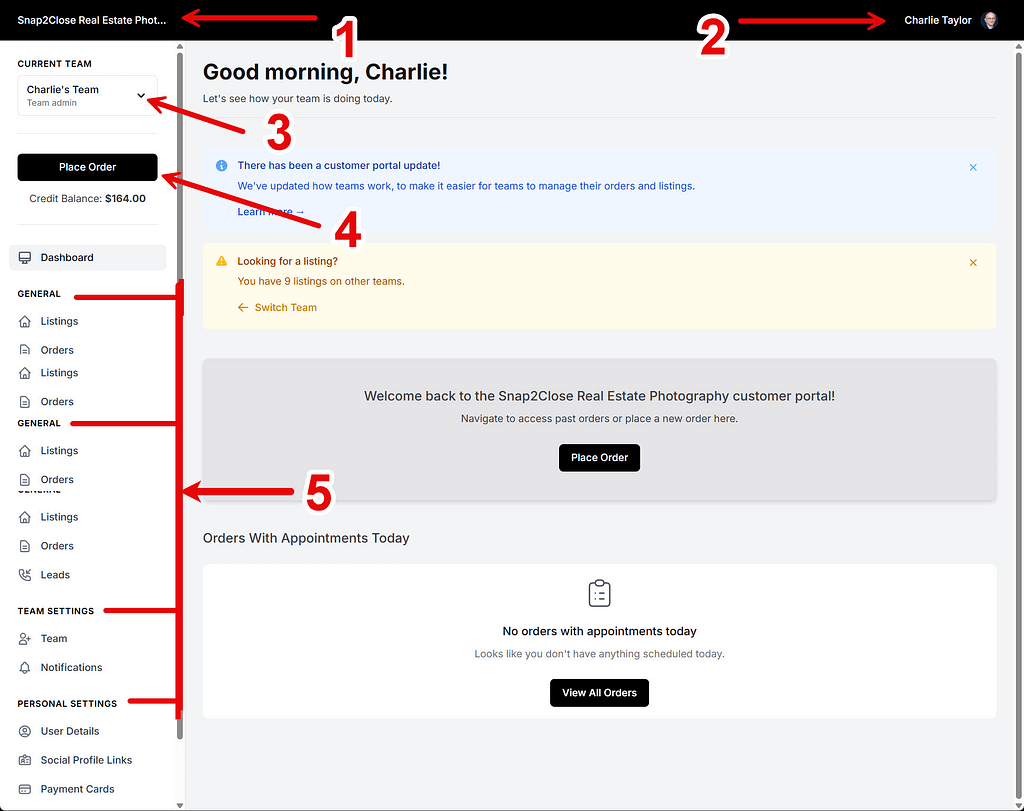
Welcome to the Snap2Close Real Estate Photography Portal! Here are some key points to help you navigate and make the most of your experience:
1. Identifying Snap2Close: When you land on the portal, you should see Snap2Close listed in the top le section. If you don’t see it, simply mouse over the name you do see and select Snap2Close.
2. Dashboard: This is your default landing page, where you should see Snap2Close at the top left and your name at the top right. The le side is for your menu, and the right side is for your activities.
3. Current Team: If you belong to multiple teams, be sure to select the appropriate team at the top le so that you can complete your tasks effectively.
4. Place Order and Credit Balance: You’ll find a “Place Order” button at the top, and below that, a detailed list of any Credit Balance you may have. The Dashboard menu item will be highlighted with a gray bar to indicate that you are on the Dashboard page.
5. Menu Sections: The menu is divided into three sections – GENERAL, TEAM SETTINGS, and PERSONAL SETTINGS. Most of your activity will likely be on the Listings and Orders menu items.
We hope this information helps you get started with the Snap2Close Portal. If you have any further questions or need assistance, please don’t hesitate to reach out to our customer support team. We’re here to help!