Listing
Marketing Section
Marketing Section Tools
Listing – the marketing section
The Marketing Section provides you the tools to manage your listing’s description and pricing data, customize your branded and unbranded property websites, and to create flyers, post cards, digital ads, and more.
The Marketing Section – Details
Below is a detailed description of each marketing section.
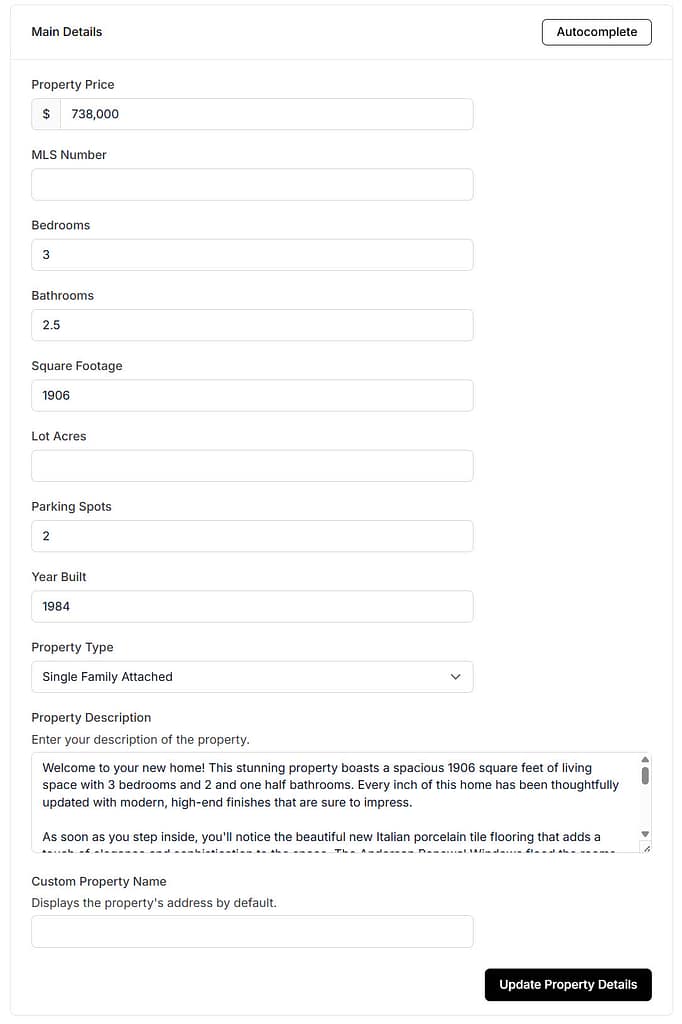
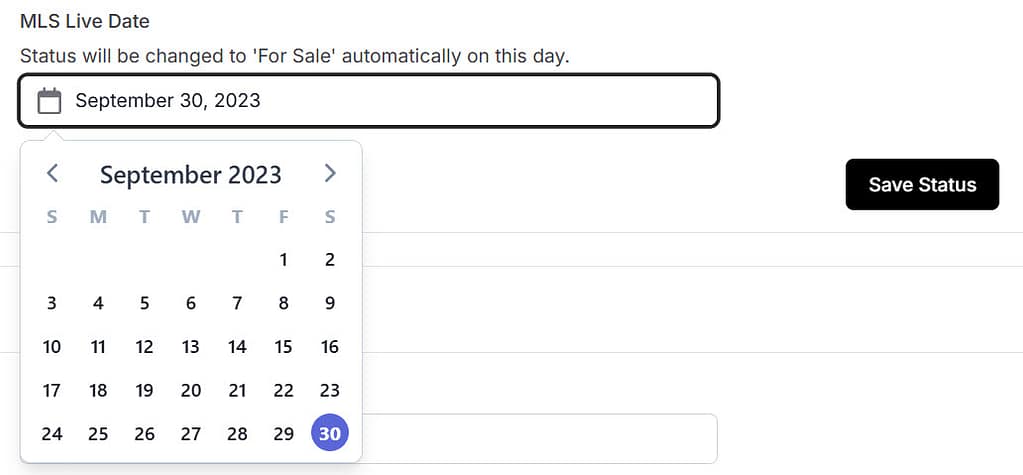
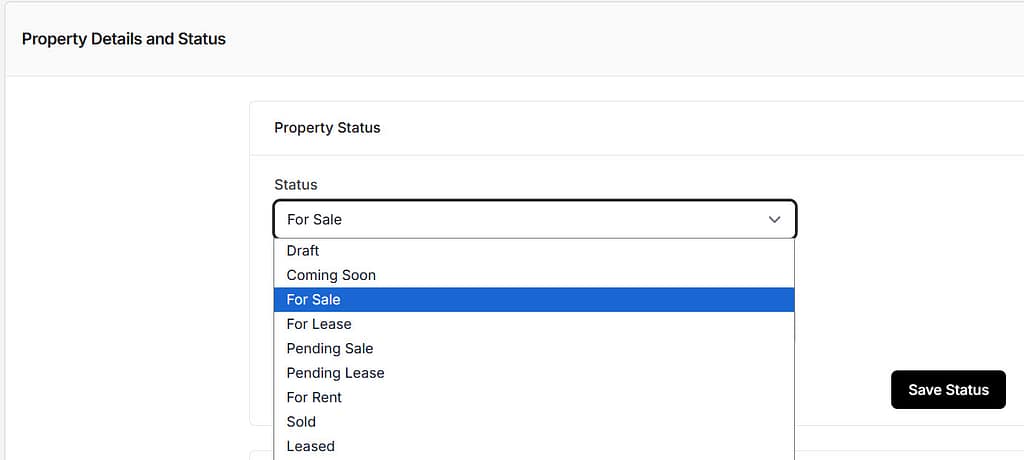
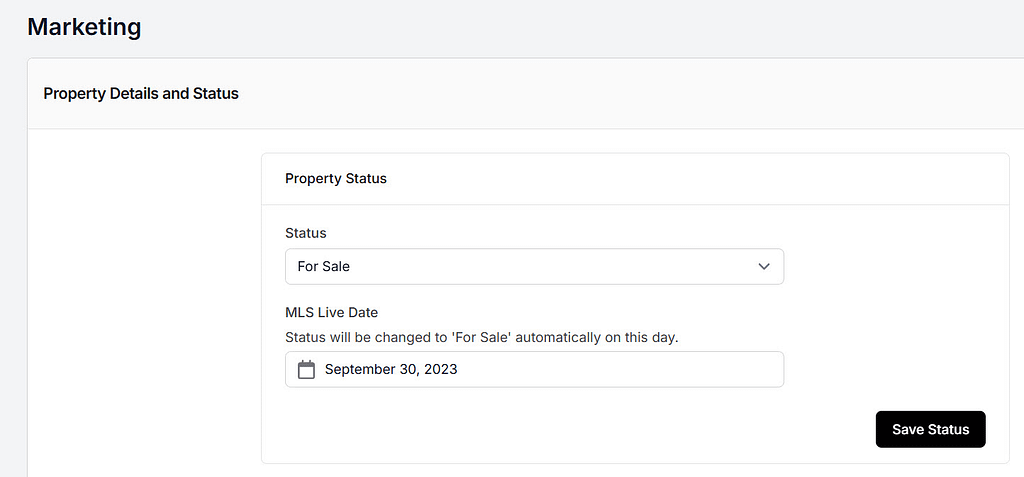
- Property Details and Status: This section has two categories for you to completed. The first category is the Status of the home (sample and sample) and the targeted MLS Live Date (sample). The second category is the Main Details (sample).
The information you enter on the Main Details section is transferred to your Property Websites and the Marketing Materials section which allows you to create property flyers. It is important to keep this information up to date. (Click here to watch a 2023 video tutorial.) - Property Websites: This complementary marketing tool is extremely valuable to you as an agent since you can post your unbranded property website on MLS and your branded property website on social media accounts and via regular mail and email. Additionally, you can adjust the colors and fonts to match your brokerage’s colors, adjust what media is shown and and which order it is displayed.
The tools available for you to use are detailed below. - Domain Name: By default, your domain names are listed under our sub-domain which is listings.snap2close.com/sites/……. The branded property website also includes the property address. However, a long domain name is difficult to pass along to others.
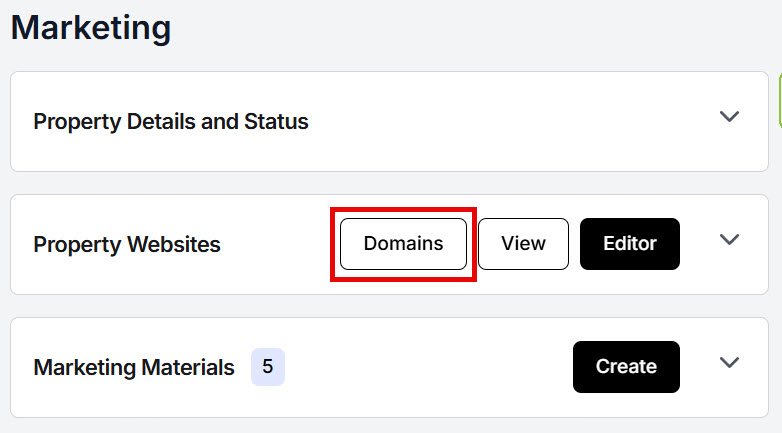
While Snap2Close automatically provides you with QR Code images for both your unbranded and branded sites in the Files section for your listing, you may want to demonstrate your marketing skills by buying the domain name that matches the address of your listing. Here is a YouTube video that you may want to watch. The process to purchase your domain is very simple: - Step 1. Click the Domains button on the Property Website Section (sample).
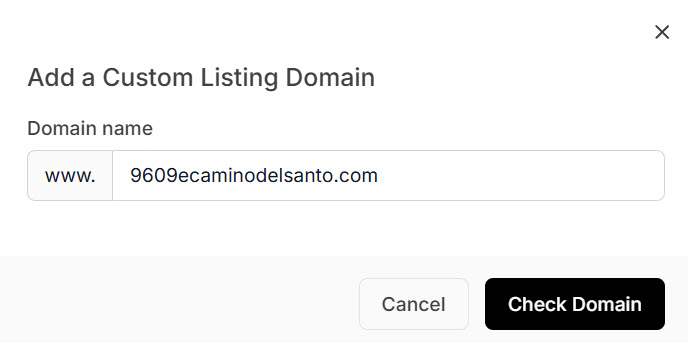
- Step 2. The system creates a domain name based upon the address, but you can change domain name if you choose to do so (sample). You will then click the Check Domain button.
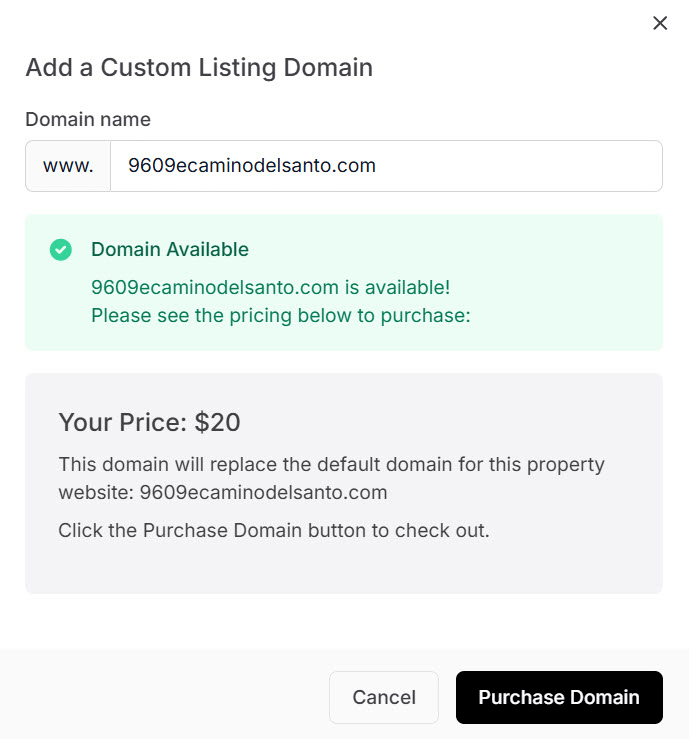
- Step 3. The system will let you know if the domain name is available and let you know the price. Click the Purchase Domain button (sample).
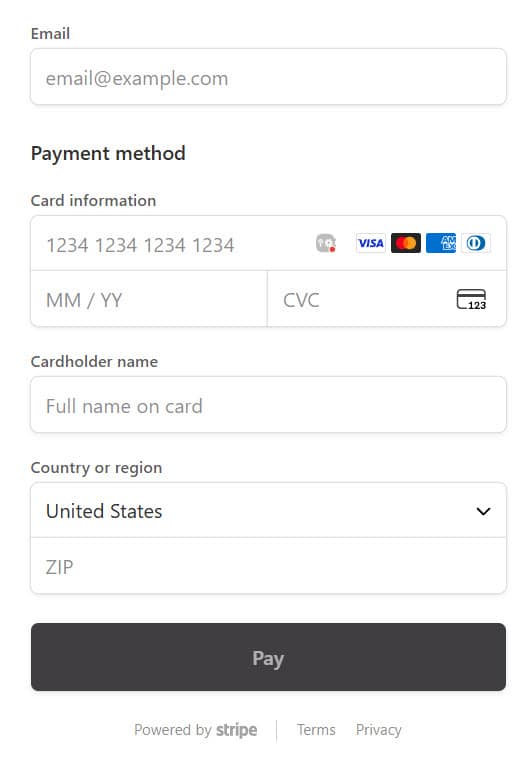
- Step 4. Pay for the domain name via the checkout screen (sample). Ownership of the domain name is valid for 12 months.
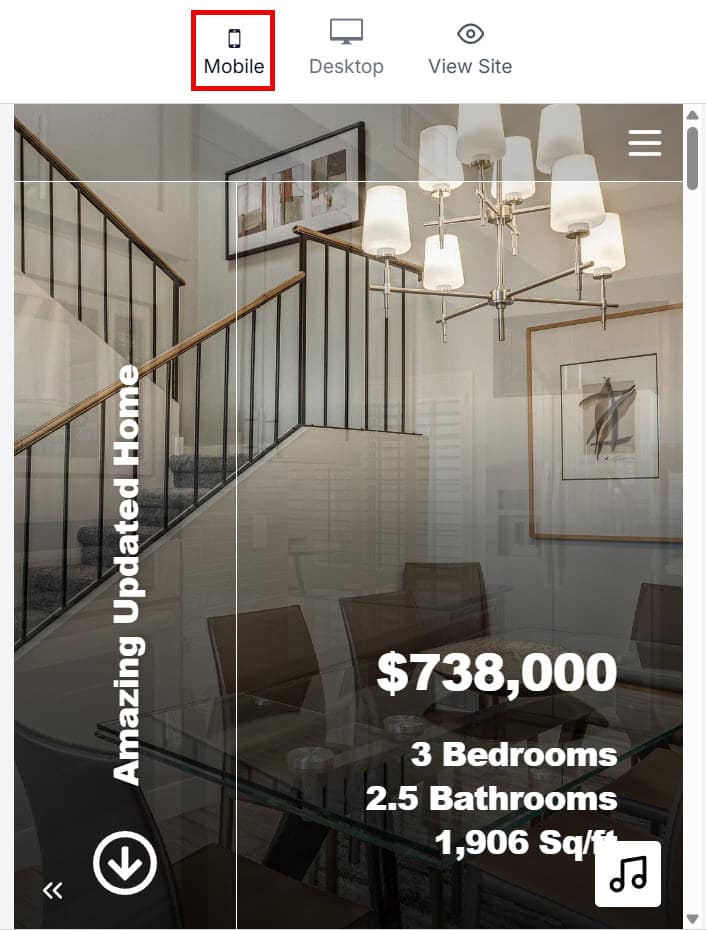
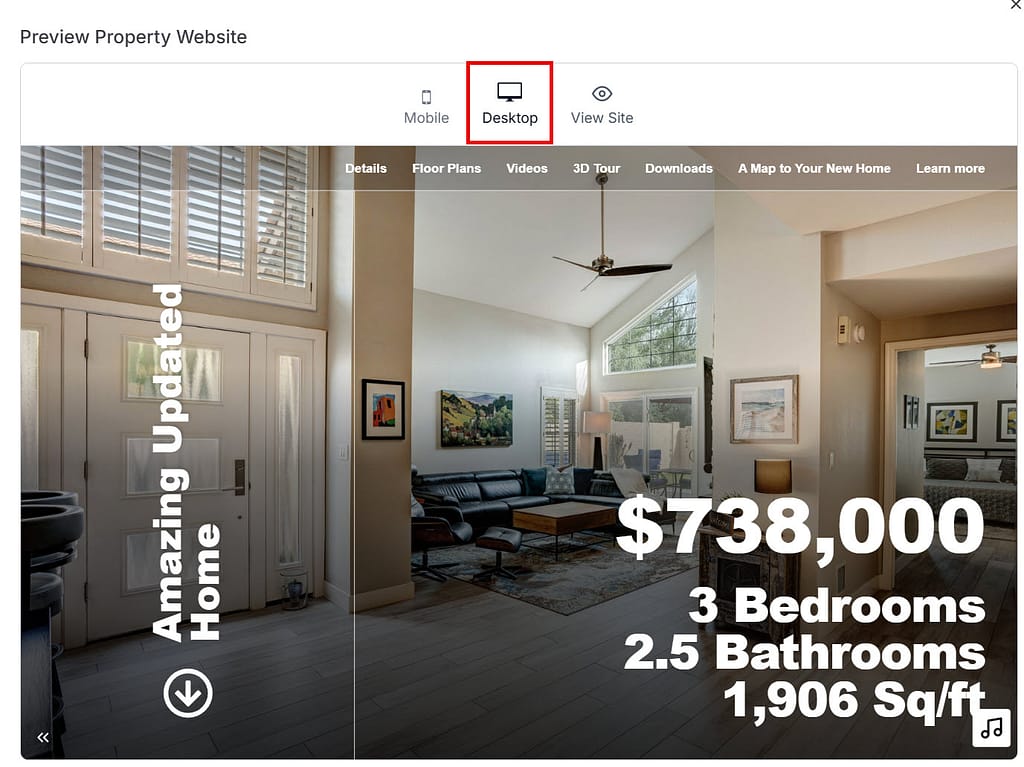
- View: Clicking the View button opens up a pop-up screen displaying the Preview Desktop view (sample) of the Branded Property Website. When you click the Mobile icon at the top of the screen then the view switches to a Preview Mobile Phone view (sample)
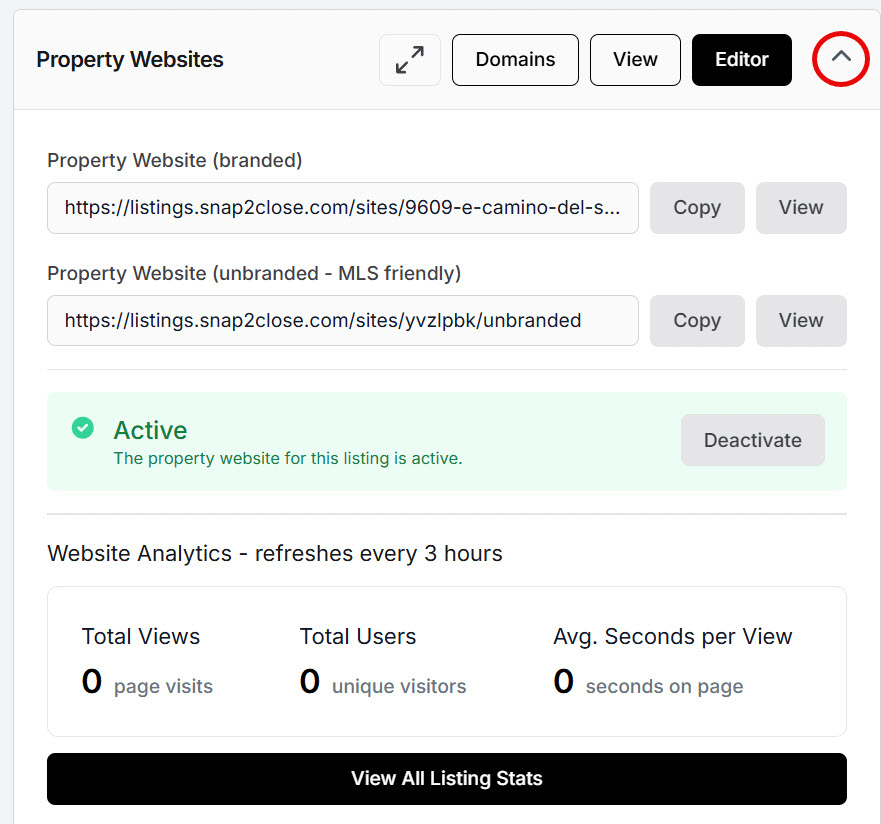
- Down Arrow: Clicking the down arrow located on the right side of the black Editor button will open an expanded display (sample).
- Within the expanded display are URL links to the both the branded and unbranded Property Websites. Be sure to copy the link for the unbranded version and use it as the Virtual Tour link on MLS.
- The next category is the Active status of the website. You have the ability to deactivate the websites at any time by clicking the Deactivate button.
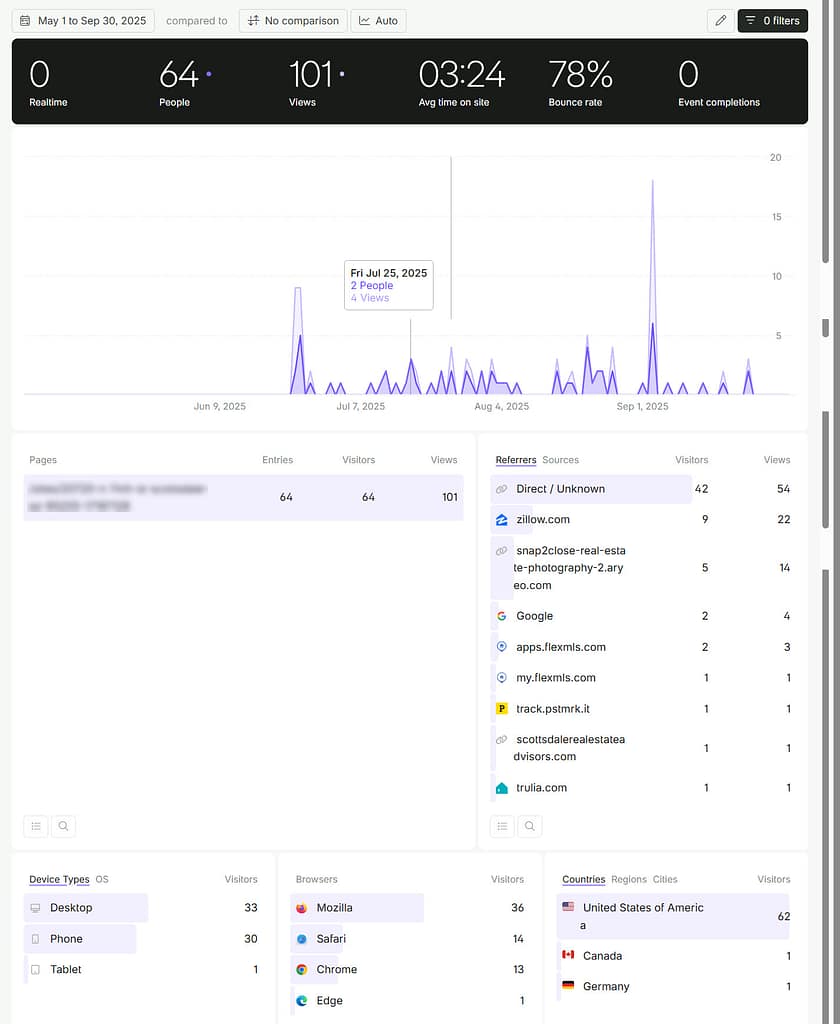
- Website Analytics: The bottom category for the expanded view is a fairly comprehensive view of how active your property websites are. The displayed information is for the current date. When you click the black “View All Listing Stats” then a new screen will appear with detailed analytics (sample). Using the calendar function at the top of the screen will allow you to view the analytics for your desired dates. Click here to view a PDF file for instructions on how to use this feature. (Click here to watch a 2023 video tutorial.)
Click here to return to the Portal Support webpage