FAQs
Frequently Asked Questions
how to use embed codes
Embedding content using embed codes is how you add your videos and interactive content in the MLS system.
1. Find the embed code: Each Listing’s Media Page has an Embed button associated with a video or 3D content.
2. Copy the embed code: Once you have found the embed code, simply copy it to your clipboard.
3. Paste the embed code in MLS: Navigate to the to your listings’ s Media section on MLS. Here are the three steps to guide you on this process.
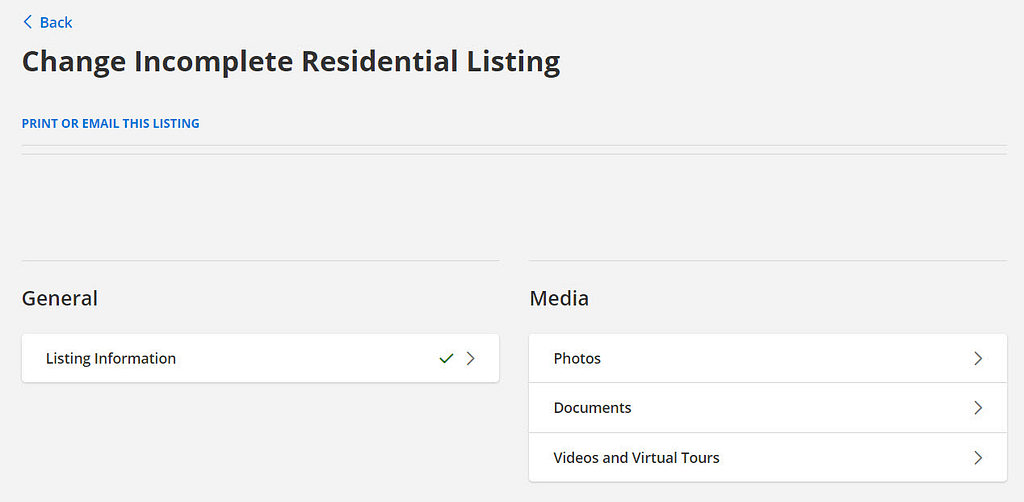
Step 1 – Navigate to the to your listings’ s Media section on MLS. Double click on the “Videos and Virtual Tours” link.
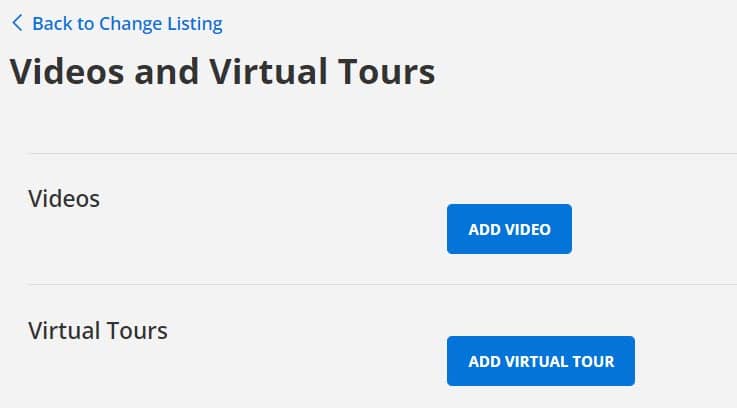
Step 2 – Double Click on the “Add Video” button.
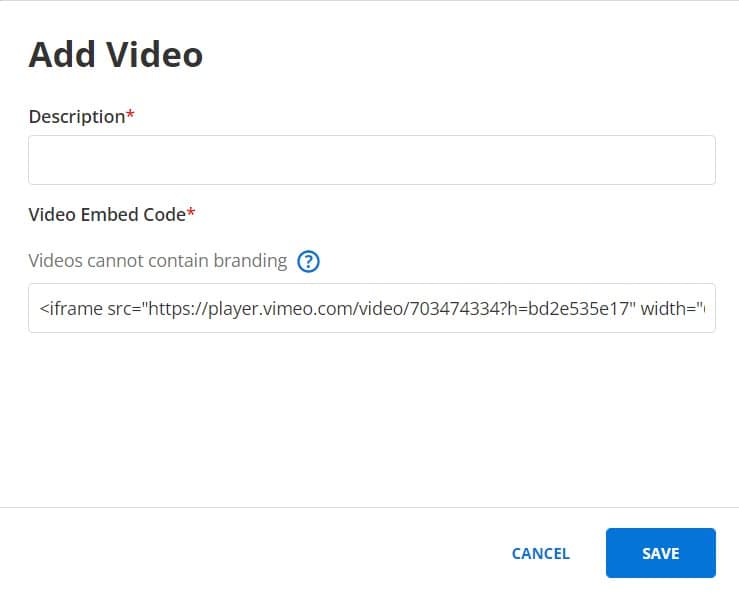
Step 3 – Paste the Embed Code in the lower text box field. Enter a title in the upper text field box. Click the Save button.
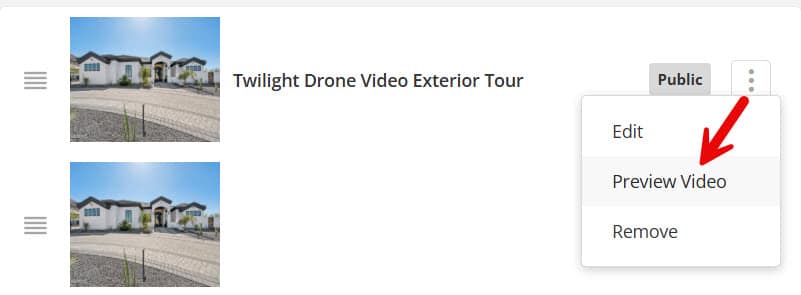
Step 4 – Use the 3 Dot Menu on the right side on the right to Preview Video.