FAQs
Frequently Asked Questions
Streamline Team Communications with Effective Notifications
To access the Team Notifications feature, follow these steps on your portal:
1. Log in to your account on our portal.
2. Navigate to the Team Settings section on the left menu.
3. Click on the Team Notifications tab to access the settings.
Once you are in the Team Notifications section, you will see a list of notification categories. Examples include “Appointment Reminder” and “Appointment Rescheduled.” You can select which categories are relevant to each team member and choose who receives notifications for each category.
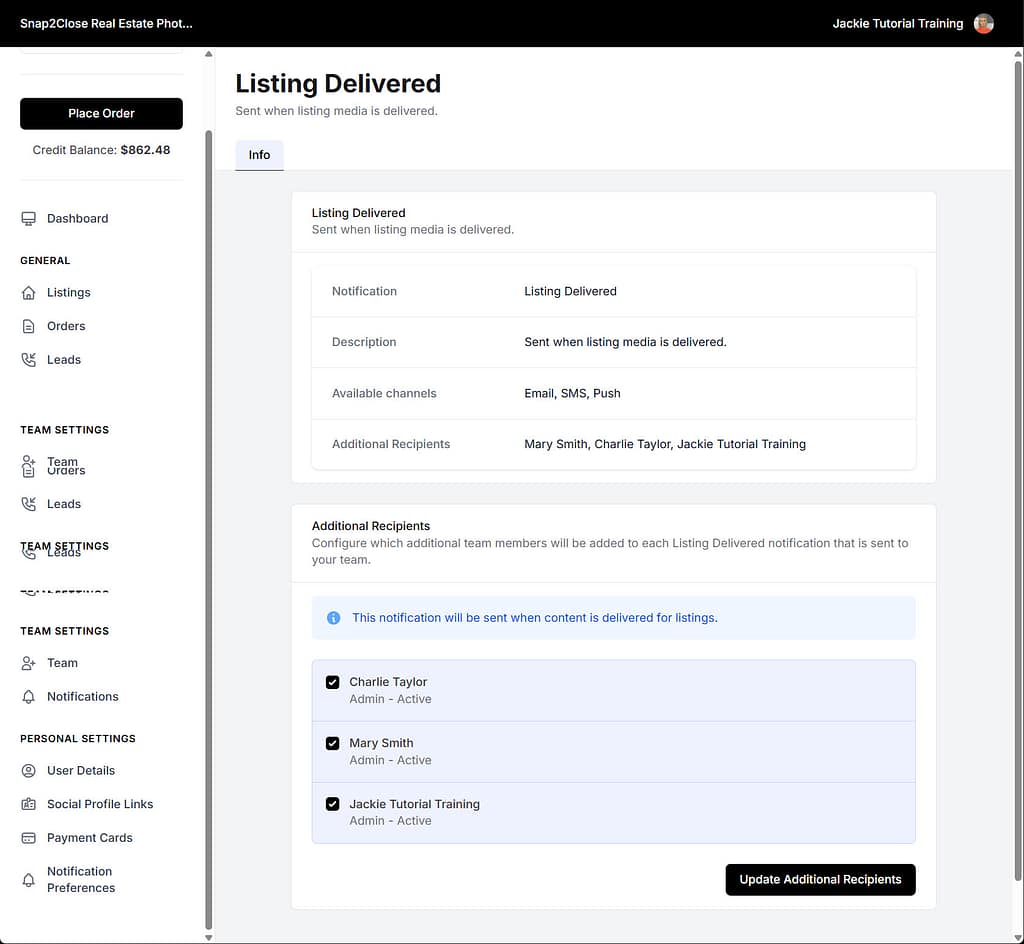
For example, you can notify the transaction coordinator for all transaction updates. Notify the contract marketing representative only when the media is ready for download. This allows you to streamline the notification process and ensure that each team member is only receiving relevant information.
Additionally, the Team Notifications feature lets you create custom notifications. These are for specific events or actions within your account. This gives you even more control over the notifications that are sent to your team
members.
Overall, the Team Notifications feature is a powerful tool for customizing the notification preferences for your team members. By using this feature, you can ensure that each team member is receiving the right information at the right time. This leads to improved communication and efficiency within your team.